Transform your standard wall outlet into a smart power hub. This guide details the process to wire the MOES WiFi USB Wall Socket. Watch the embedded video tutorial or read the step by step instructions below to enable app control and fast charging capabilities in your home.
Preparation and Safety
Locate your circuit breaker panel and switch off the main power line feeding the target outlet. Confirm there is zero voltage present using a reliable voltage tester.
Recommended Tools
- Flathead screwdriver
- Phillips screwdriver
- Voltage tester
- Wire strippers
- Needle nose pliers
Wiring and Installation Process
Step 1 Dismantle the Existing Outlet
Take off the old faceplate. Remove the mounting screws holding the current receptacle. Pull the unit forward gently to reveal the internal wiring configuration.
Step 2 Inspect the In Wall Wiring
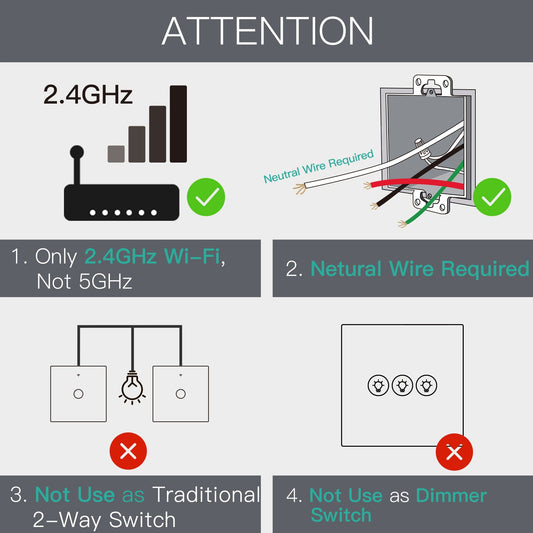
Identify the Live wire Neutral wire and the Ground wire inside the electrical box. The Ground wire is typically green or bare copper. All three connections are required for this electrical device to operate safely.
Step 3 Wire the Smart Receptacle
Loosen the terminal screws on your new MOES socket. Secure the wires into their designated slots
- Insert the Live wire into the L terminal.
- Insert the Neutral wire into the N terminal.
- Insert the Ground wire into the Ground icon terminal.
Tighten every screw firmly to prevent loose connections and arcing.
Step 4 Secure the Device
Push the wires neatly back into the junction box. Position the smart socket and drive the mounting screws in until the device sits flush against the drywall.
Step 5 Install the Glass Faceplate
Align the tempered glass panel over the socket base. Press firmly around the edges until it snaps securely into place.
Step 6 Power Up and Network Pairing
Restore electricity at the breaker. The LED indicator on the socket will blink. Launch the MOES App on your phone connect to your local 2.4GHz WiFi network and add the new wall outlet. Follow the on screen instructions to link the device.
Testing the Ports and App Control
Plug a lamp or appliance into the standard AC receptacle to verify power delivery. Test the USB A and Type C ports with your mobile charging cables. Use the MOES App to toggle the power remotely set timer schedules and monitor your energy usage.
Need Troubleshooting or More Smart Devices
If you experience issues during wiring reach out to our technical support team. Browse the MOES collection to upgrade the rest of your home with matching smart outlets and build a unified automated system.