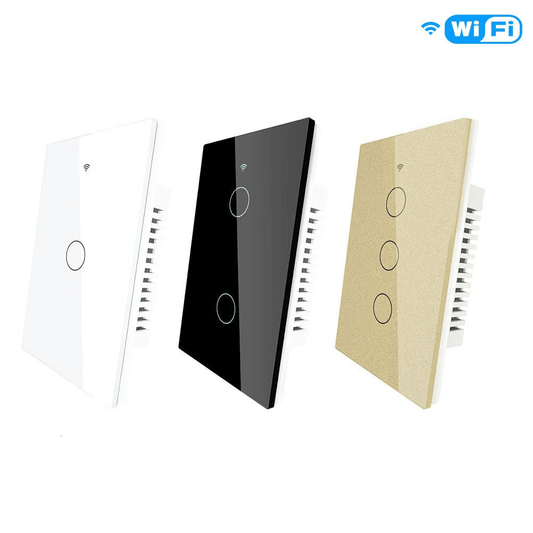
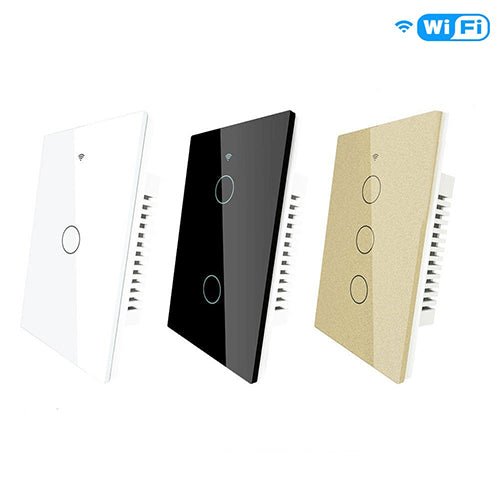
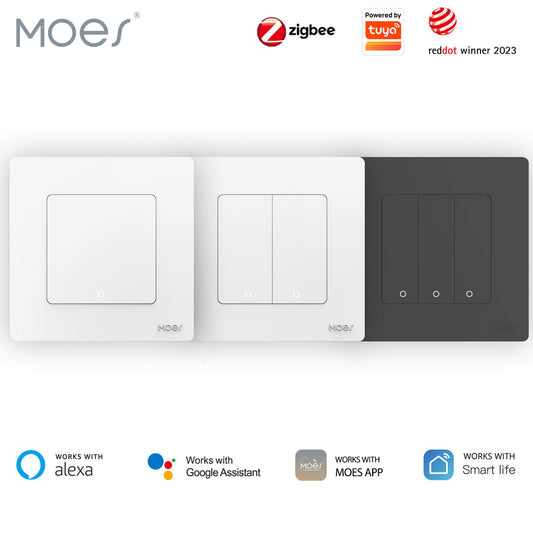
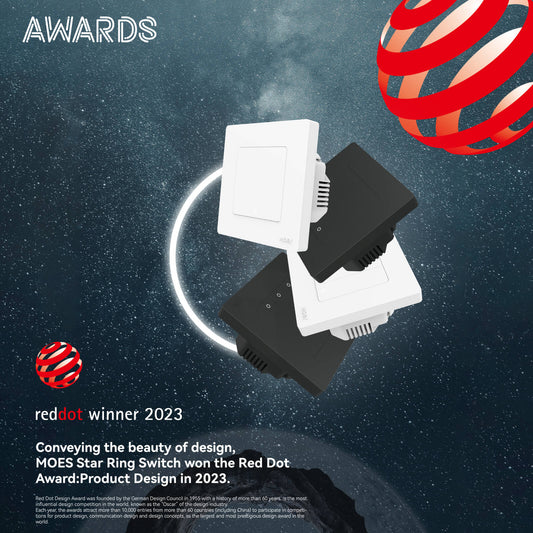
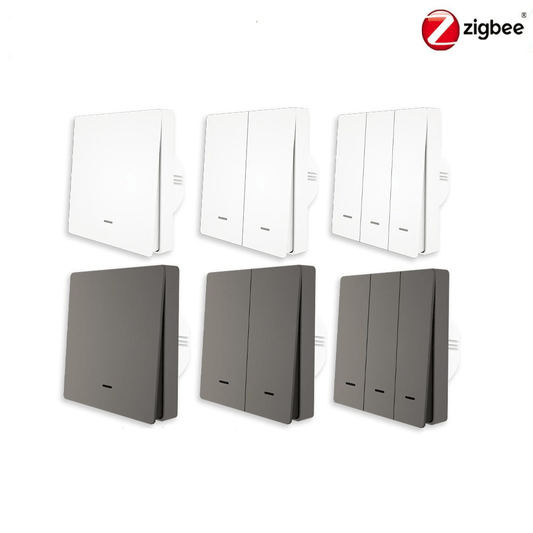
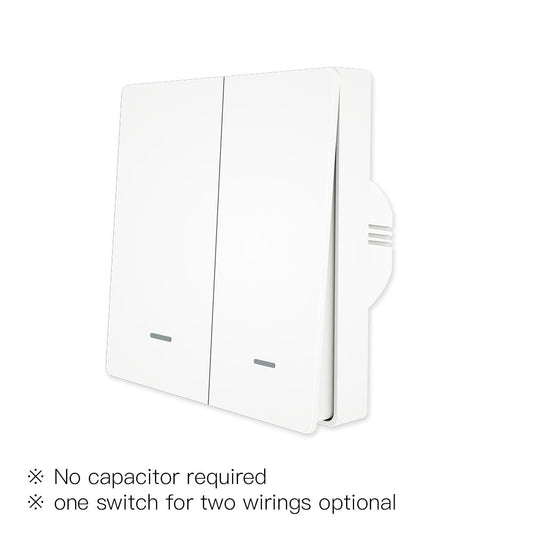
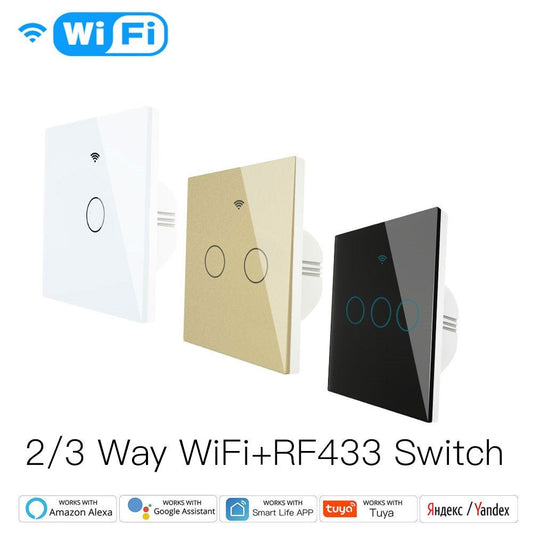
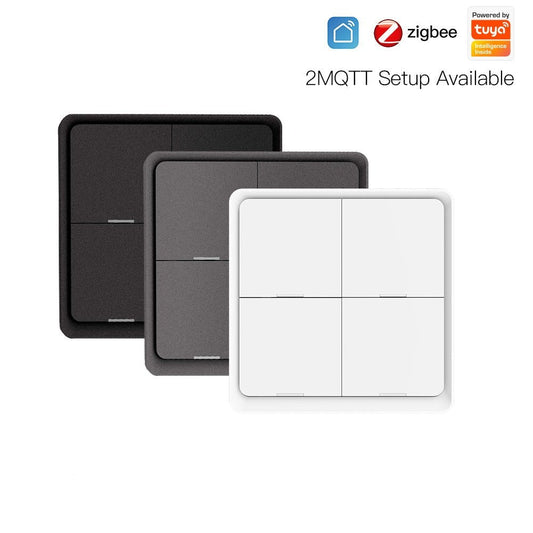
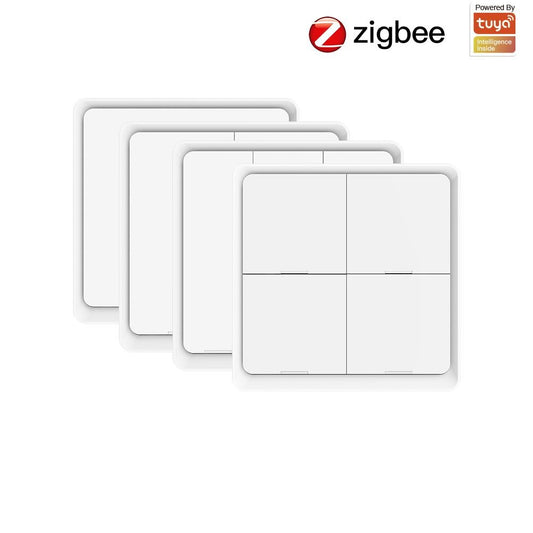
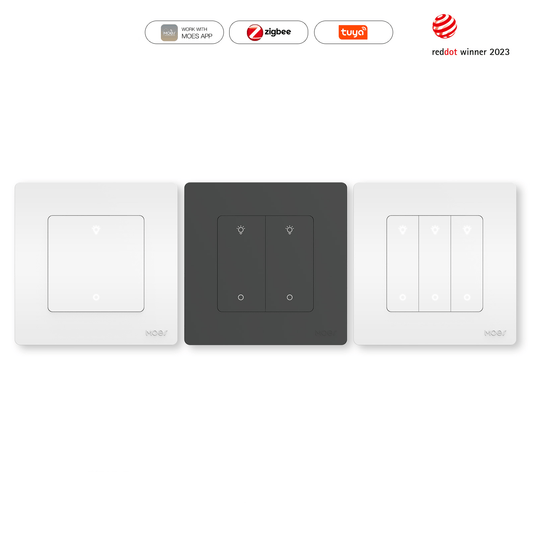
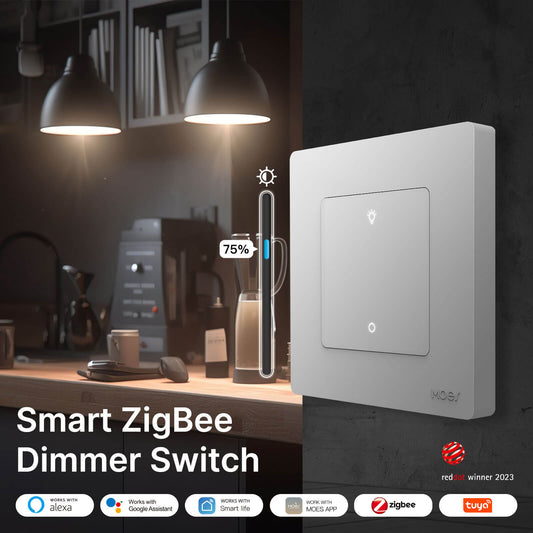
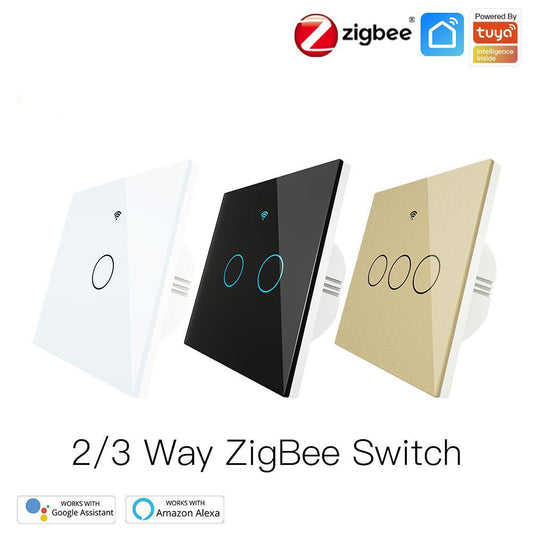
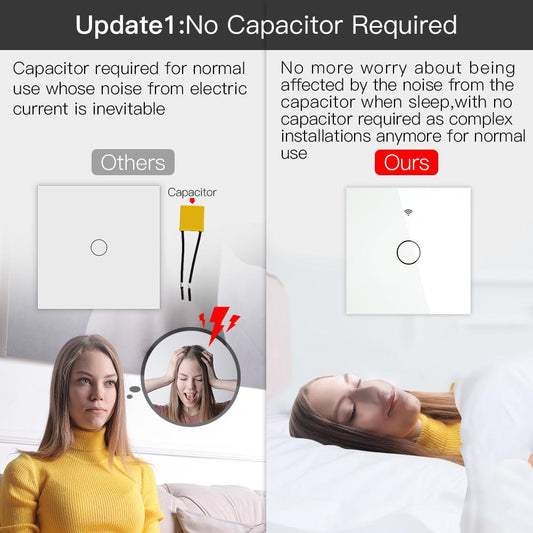
The primary advantage of the MOES Matter series is the elimination of the "ecosystem barrier." In the past, homeowners often had to choose between a switch compatible with Siri or one that worked with Alexa. With Matter technology, a single MOES switch works natively across all platforms, providing ultra-fast local control that functions even if your cloud connection is interrupted.
1. Essential Pre-Setup Checklist
Before scanning any codes, ensure your home environment is ready for a Matter configuration. According to the MOES setup standards, you need to verify the following four pillars of connectivity:
A Matter Border Router
Matter devices do not connect directly to the internet; they require a "commander" hub to bridge them to your home network. Compatible devices include the Apple HomePod or Apple TV (4K), Google Nest Hub (2nd Gen), Amazon Echo (4th Gen), or a Samsung SmartThings Station.
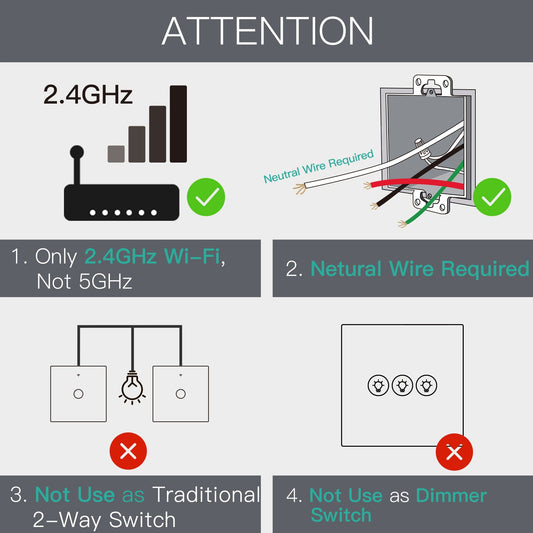
2.4 GHz Wi-Fi Connectivity
While Matter is a cutting-edge protocol, the initial pairing process for MOES Wi-Fi-based switches must occur on a 2.4 GHz band. Ensure your smartphone is not auto-switched to 5 GHz during the setup.
Proximity for Pairing
For a stable initial "handshake" between the switch and your hub, keep the device within 5 to 10 meters of your Border Router during the first connection.
The Matter QR Code
Each MOES switch features a unique QR code that typically located on the side of the unit or inside the manual. This is the digital "identity card" for your hardware and keep it safe.
2. Primary Platform Integration: The First Connection
You can begin the setup with whichever App you use most frequently. The process is remarkably consistent across Apple Home, Google Home, Alexa, and SmartThings.
- Prepare the Switch: Ensure your MOES switch is correctly wired and powered on. If the indicator light is not flashing, press and hold the main button for approximately 10 seconds to enter pairing mode.
- Initiate Discovery: Open your chosen Smart Home App and select "Add Device" or the "+" icon.
- Scan the Matter Code: When prompted, scan the Matter QR code. Your phone will use Bluetooth to locate the switch and then pass the Wi-Fi credentials to it via your Border Router.
- Verification: The system will perform an automatic, secure authentication. Once verified, you can name the device (e.g., "Kitchen Light") and assign it to a specific room in your home.
3. Activating Multi-Admin Mode
The true power of MOES Matter hardware lies in Multi-Admin support. This allows you to control the same switch from an iPhone via Siri and an Android tablet via Google Assistant at the same time.
- Generate a Sharing Code: Open the App where you first successfully set up the switch (the "Primary App"). Navigate to the device settings and look for a feature labeled "Share via Matter," "Turn on Pairing Mode," or "Other Ecosystems."
- The 11-Digit Setup Code: The App will generate a temporary numerical code. Note that for security reasons, this code usually expires within 15 minutes.
- Pair with the Second App: Open your second preferred App (e.g., Amazon Alexa). Choose "Add Device" -> "Matter" and select the option "I don't have a QR code" or "Enter a setup code."
- Input the Manual Code: Paste the 11-digit code generated from your first App. The second ecosystem will now recognize the MOES switch and add it to its dashboard.
- Ultimate Flexibility: Regardless of which App or voice assistant you use to toggle the light, the status will update across all platforms instantly.
4. Why MOES Matter Technology is a Smart Investment
Ultra-Low Latency: Because Matter focuses on local area network (LAN) communication, the delay between a command and the physical switch response is significantly reduced. It feels nearly instantaneous compared to traditional cloud-based Wi-Fi switches.
Enhanced Privacy & Security: Matter setup does not require you to share your Wi-Fi password with third-party clouds. All authentication happens locally between your smartphone, the hub, and the switch itself.
Future-Proofing Your Home: If you decide to switch from an iPhone to an Android device (or vice-versa) in the future, you won't need to replace your MOES switches. They are built to be platform-agnostic and will continue to function seamlessly.
5. Troubleshooting Common Setup Hurdles
"Device Not Found" During Discovery: Ensure your phone's Bluetooth is enabled. Bluetooth is the "discovery" bridge used before the switch transitions to your Wi-Fi network.
- Setup Code Expiration: If the 11-digit sharing code expires before you finish adding it to the second platform, simply return to the primary App and generate a new one.
- Hub Connectivity: If your Border Router (like a Nest Hub or HomePod) is offline, the Matter switch cannot be added. Always check your hub’s status first.
By integrating MOES Matter switches, you are moving away from fragmented apps and toward a unified, responsive, and highly flexible smart ecosystem. Ultimate flexibility is now at your fingertips!