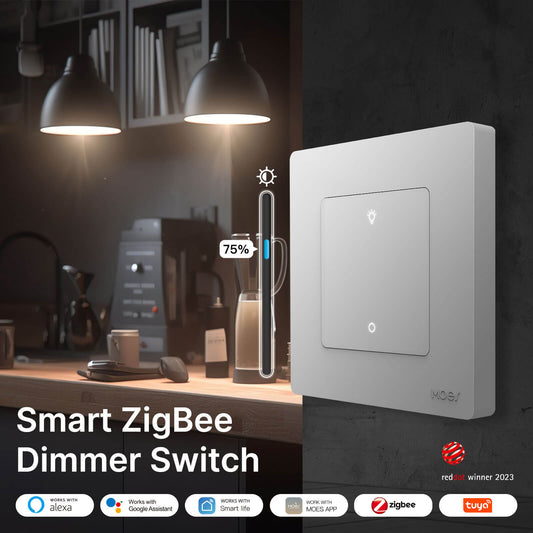
We all know the feeling. You are settling in for a movie night on the sofa, only to realize the kitchen lights are still glaring. Instead of simply pressing a physical button, you have to unlock your phone, open an app, wait for it to load, and manually drag a digital slider.
While smart homes are designed to make life easier, relying entirely on smartphones can sometimes feel like a step backward.
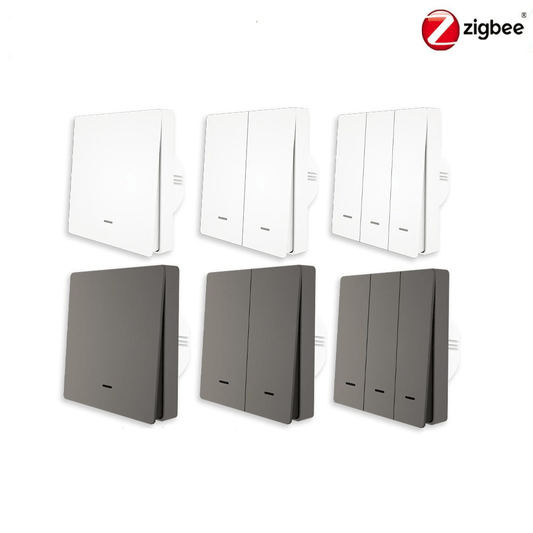
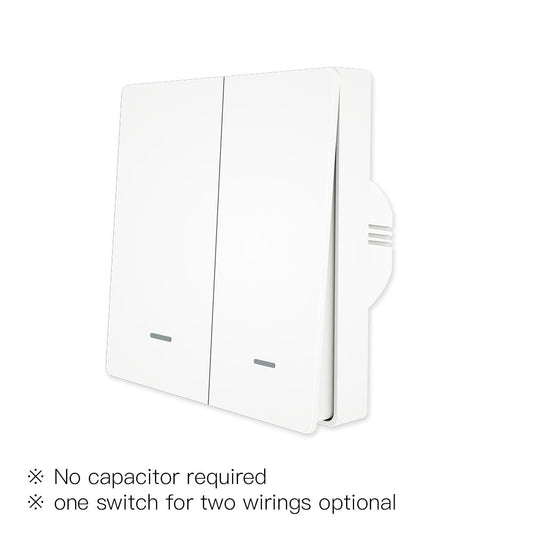
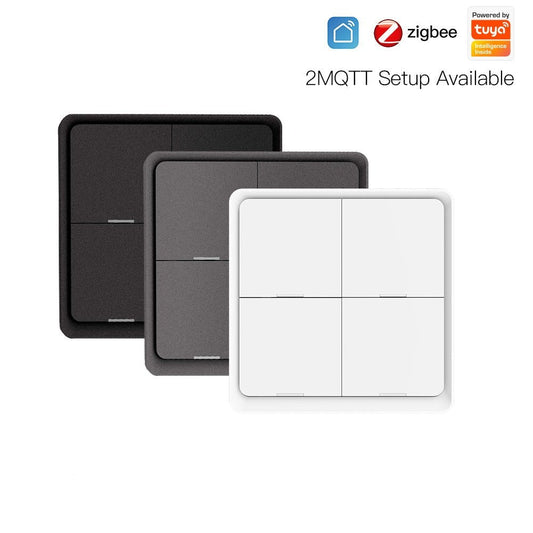
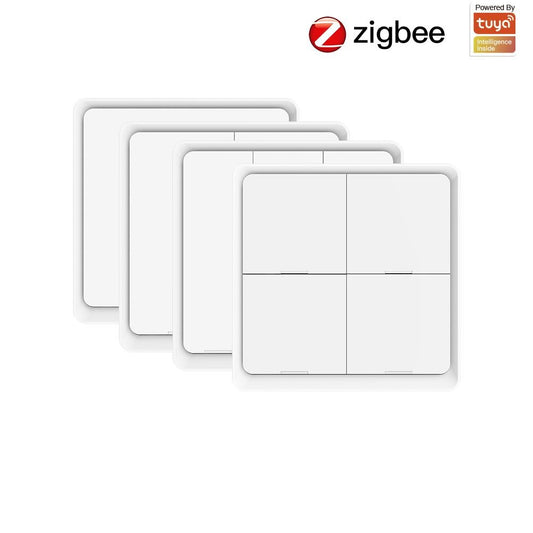
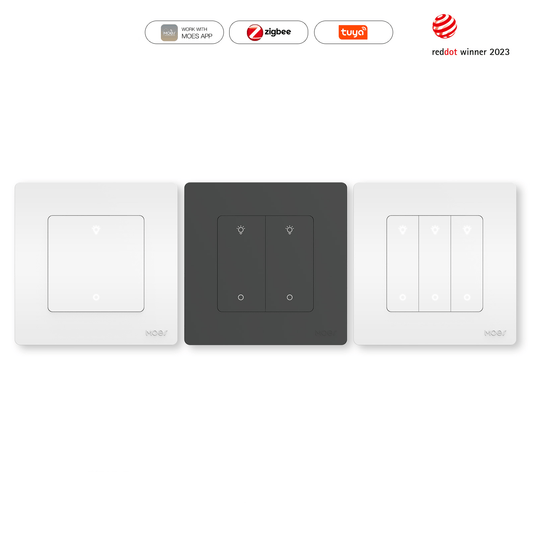
If you are looking to bring physical convenience back to your smart home without dealing with complicated electrical wiring, it is time to look at the MOES Zigbee Wireless Scene Switch.

This compact, magnetic remote acts as a physical dashboard for your house, allowing you to trigger complex automation routines instantly.
Let us break down how to set up this sleek device and why it is the ultimate zero wiring upgrade for your living space.
Four Essential Features in One Sleek Remote
Before we jump into the setup, here is why this magnetic scene switch is a game changer for daily home automation:
One Switch, 9 Intelligent Commands
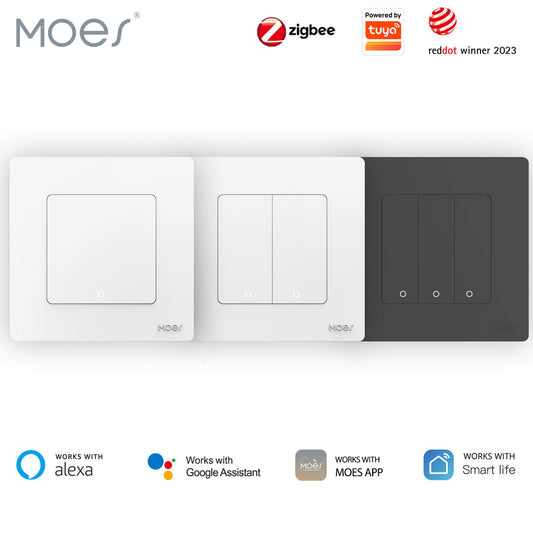
Maximize your control with just 3 tactile buttons. Each button supports a Single Press, a Double Press, and a Long Press. This allows you to trigger up to 9 unique scenes, such as Away Mode, Cinema Mode, or All Lights Off, all from one device.
Detachable Magnetic Mobility
Experience ultimate flexibility. The remote magnetically snaps onto its wall base but can be detached in a second. Leave it by the door as a wall switch, stick it to your refrigerator, or take it to your nightstand as a handheld remote.
Zigbee 3.0 Connectivity
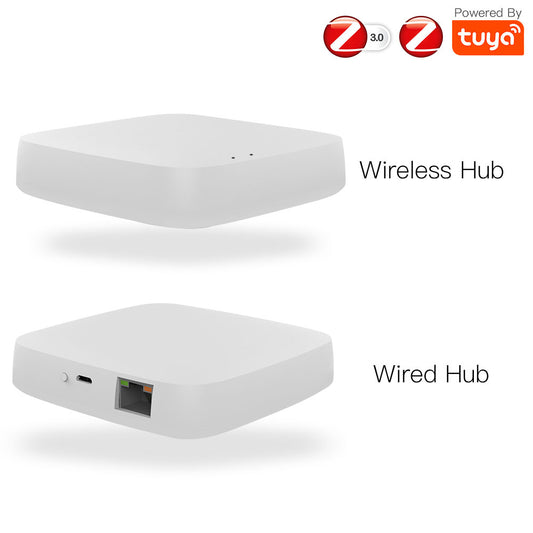
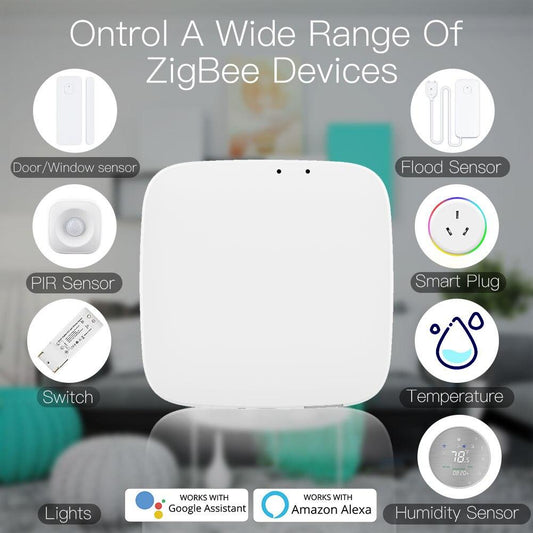
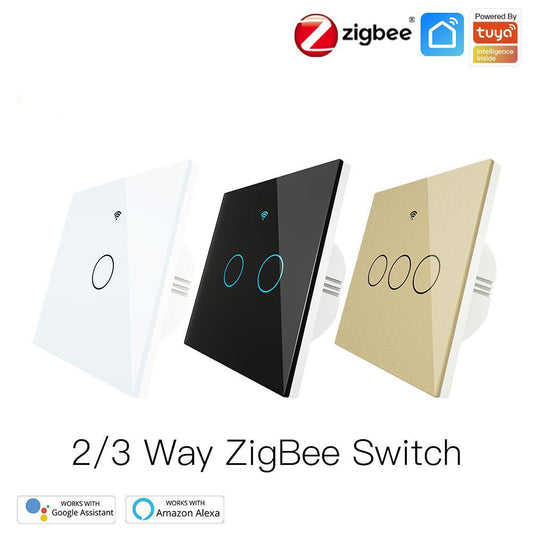
Powered by the ultra low power Zigbee protocol, this switch bypasses Wi Fi congestion to deliver instantaneous and stable responses. Note that a Tuya or MOES Zigbee Gateway is required for operation.
365 Day Ultra Long Battery Life
Powered by a standard CR2032 button battery, the remote offers up to 12 months of daily use. Your smart home remains responsive and energy efficient, reducing the need for constant maintenance.

Step by Step Installation and Setup (Zero Wiring)
The best part about the MOES Zigbee Scene Switch is the complete lack of electrical wiring. Perfect for renters and DIY enthusiasts alike, you can have this running in under 5 minutes without a single tool.
Step 1: Powering Up the Switch
Slide open the back cover of the remote. Remove the insulation sheet or insert a fresh CR2032 button battery, ensuring the positive side is facing up. You should see the subtle LED indicator blink, signaling that the device has power.
Step 2: Connect to Your Zigbee Gateway
Because this is a Zigbee 3.0 device, you must have a compatible Zigbee Gateway connected to your network.
1. Open your Smart Life or MOES App.
2. Navigate to your Zigbee Gateway interface and select Add Subdevice.
3. On the Scene Switch, long press any of the three buttons for about 10 seconds until the LED indicator starts flashing rapidly.
4. The app will automatically discover the Wireless Scene Switch. Tap to add it to your network.
Step 3: Mounting the Magnetic Base
You have two simple choices for installing the wall base:
- The Stick and Go Method: Use the included 3M double sided adhesive tape to stick the backplate onto any clean, flat wall or glass surface.
- The Secure Method: For a more permanent fixture, use the included installation screws to mount the backplate over an existing but disconnected wall box.
Once the base is mounted, simply snap the magnetic remote directly onto it.
Step 4: Programming Your 9 Scenes
Now for the fun part. Open the Scene Switch interface in your app to assign specific actions to your buttons.
1. Tap on Button 1, 2, or 3 within the app.
2. Choose your preferred trigger: Single Click, Double Click, or Long Press.
3. Select the action you want to occur. You can command it to turn on a specific smart bulb, adjust your smart curtains step by step, or trigger a full room automation scene.
4. Save your settings.
Step 5: Explore Advanced Features
If your controlled smart devices support it, you can utilize advanced commands.
- Reverse Switch Function: Set a single button press to flip a device between its on and off states, reducing the number of buttons you need to use.
- Percentage Control: Program a button to dim your lights or open your smart blinds in specific percentage increments for ultimate precision.

Final Thoughts
The MOES Zigbee Wireless Scene Switch bridges the gap between traditional tactile switches and modern smart home automation. By following this simple guide, you can eliminate app fatigue and put the control of your house back into the palm of your hand.
For more tips on optimizing your smart home, be sure to explore the MOES app and discover new ways to automate your daily routines.