Zigbee Interference and Dropped Connections
Zigbee and Wi-Fi share the same radio band, so a Zigbee network that worked last month can start dropping commands after a neighbor installs a new router. The usual symptoms are a delay before a light responds, a device that goes offline and returns on its own, and devices at one end of the house failing while the rest behave.
This guide works through the four causes in the order they explain the most failures.

Why the Two Networks Collide
Zigbee uses the 2.4 GHz band, and so does Wi-Fi. Neither technology can tell the other to stop transmitting, so both treat the other as background noise and retry when a packet is lost.
Retries are what produce the symptoms rather than the cause. A network experiencing interference does not stop working; it slows down, and a slow Zigbee message looks to a user like a device that has become unreliable.
Wi-Fi uses wide channels, and Zigbee uses narrow ones, which is why overlap in one direction hurts more than overlap in the other. A Zigbee channel sitting inside the width of a Wi-Fi channel is effectively being talked over.
Move the Zigbee Channel Away From Wi-Fi
Zigbee and Wi-Fi channel numbers do not correspond, and this is the part that catches people out. Zigbee channel 15 is adjacent to the upper edge of a typical 20 MHz Wi-Fi channel 1 allocation, so the extent of interference depends on channel bandwidth, signal strength, and the radio environment. Zigbee channels 11–14 overlap more directly with Wi-Fi channel 1.
| Wi-Fi configuration | Zigbee channels to evaluate first |
|---|---|
| 1 | 15, 20, 25 |
| 6 | 11, 20, 25 |
| 11 | 11, 15, 20 |
| 1 and 6 together | 20, 25 |
| 1, 6, and 11 together | 25, subject to device and regional support |
Zigbee channels 25 and 26 are worth considering when nearby Wi-Fi networks use channels 1, 6, or 11. However, channel 25 may still be affected by adjacent-channel interference, and channel 26 may have limited support or reduced transmit power on some devices and in some regions. Check device compatibility and local regulations before selecting a channel. Zigbee channel 20 can be a reasonable option when nearby Wi-Fi networks use channels 1 and 6, but its suitability should be verified against the actual channel layout and interference levels.
The Zigbee channel is set on the coordinator or gateway and not on the devices. Changing the Zigbee channel may require the coordinator to migrate the network and may cause some devices to disconnect temporarily. Whether devices reconnect automatically or need to be rejoined depends on the coordinator, firmware, and device support. Check the gateway's instructions before making this change, and document your network settings first.
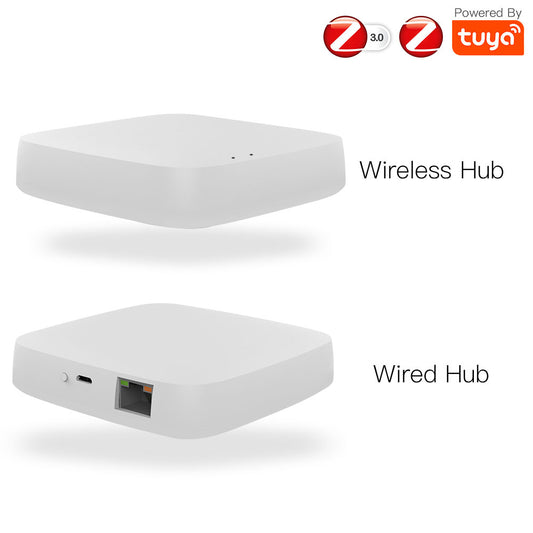
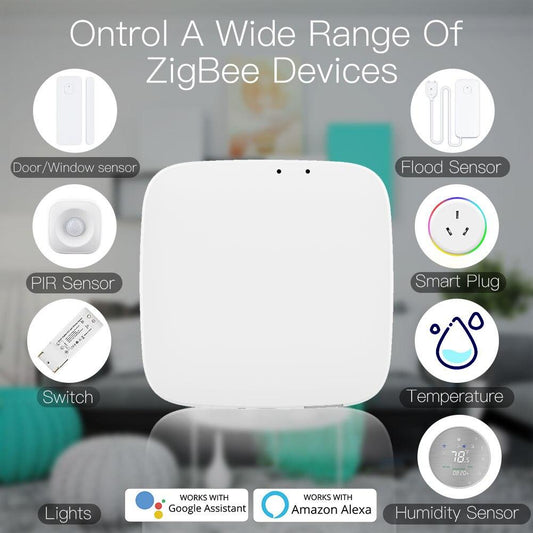
The gateway that runs the network is listed under Zigbee gateways and hubs.
Fix the Coordinator's Position
A coordinator plugged straight into a computer or a router sits against metal or behind other electronics, which is the worst place for a radio. USB 3 ports are a known source of noise in the 2.4 GHz band, and a coordinator next to one can lose range without any obvious cause.
- Put the coordinator on a short USB extension cable, at least half a meter from the machine.
- Keep it away from USB 3 ports, external drives, and the back of a metal case.
- Raise it away from the floor and away from a Wi-Fi router.
- Avoid putting it inside a cupboard or a metal cabinet.
Moving a coordinator from a rear USB port to an extension cable on a shelf resolves a surprising share of reported range problems, and it costs nothing to try.

Build the Mesh Rather Than Adding Repeaters
Zigbee is a mesh network, and most mains-powered devices repeat for the ones around them. A house with a gateway in one corner and battery sensors at the far end has a single weak link rather than a weak network.
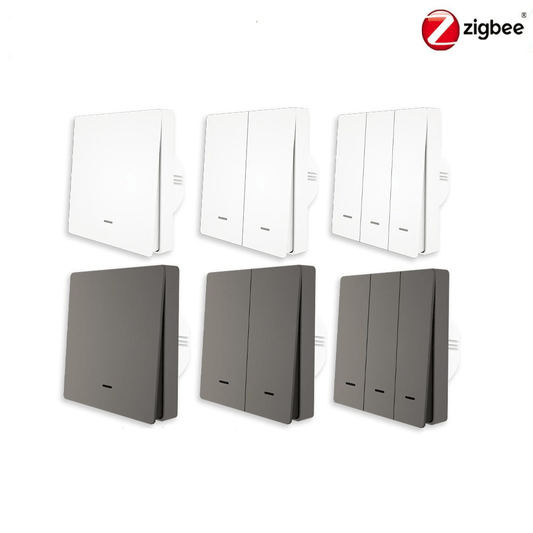
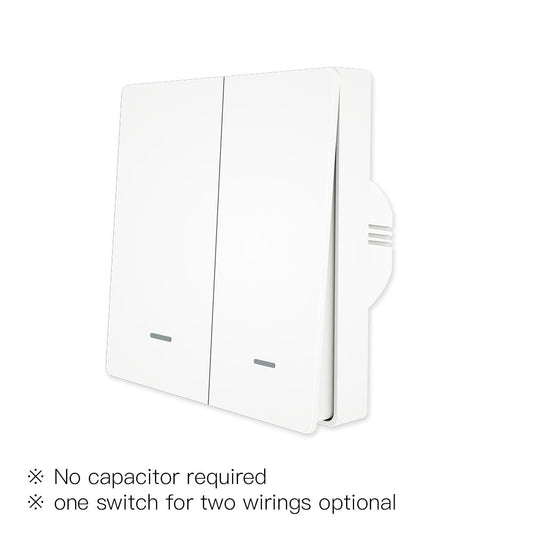
The fix is to add mains-powered Zigbee devices between the coordinator and the far end. Switches, plugs, and smart sockets all repeat, so the ordinary act of installing more of them strengthens the network rather than loading it.
Most battery-powered Zigbee sensors and buttons operate as end devices rather than routers. They typically sleep to conserve power and do not relay messages for other devices. A network with few routing devices may therefore have limited coverage, depending on the layout and the devices used.
The mains-powered devices that extend the network are listed under Zigbee devices.
Reduce Competing Traffic
Interference also comes from inside the house. The band is shared with wireless speakers, baby monitors, microwave ovens, and cordless phones, and each one adds noise in the same place.
Two changes usually help. Moving the router's 2.4 GHz radio to a fixed channel rather than leaving it on automatic stops it from drifting into a channel the Zigbee network is using, and switching off a 2.4 GHz guest network that nothing uses frees the band.
Where the household owns a lot of 2.4 GHz devices, moving what can be moved to the 5 GHz band is worth doing. Where supported, phones, laptops, and TVs can use the 5 GHz Wi-Fi band to reduce traffic on 2.4 GHz. However, device compatibility, range, and wall penetration should be considered, and moving Wi-Fi clients to 5 GHz will not eliminate all sources of 2.4 GHz interference.
Diagnosing Before Changing Anything
Changing channels and re-pairing everything is disruptive, so it is worth confirming the cause first. Four checks separate an interference problem from a coverage problem and from a device problem.
- Does the failure affect devices in one area, which points to coverage, or devices at random, which points to interference?
- Does it happen at a particular time of day, which points to a neighbor or an appliance?
- Does a device that fails still appear in the app, which points to the network, or does it disappear entirely?
- Did the problem start after a change, such as a new router, a new appliance, or a firmware update?
The third check can help narrow down the cause, but it is not conclusive. A device that remains visible in the app but responds slowly may be experiencing radio interference, routing issues, or delays in the hub or cloud service. A device that disappears may have a power, connectivity, pairing, or hub-related problem.
Frequently Asked Questions
The five questions below cover what people ask once a Zigbee network starts misbehaving. Each answer stands on its own.
Which Zigbee channel should I use with Wi-Fi?
Zigbee channel 25 may be a good option when nearby Wi-Fi networks use channels 1, 6, or 11. Channel 26 may also be suitable if all relevant devices support it and local regulations permit its use. The best choice depends on channel overlap, signal strength, and the actual radio environment. Zigbee 20 is the usual compromise where a router is fixed on channels 1 and 6, and Zigbee channels 11 to 14 should be avoided because they overlap Wi-Fi channel 1.
Can Zigbee and Wi-Fi run on the same network without problems?
Yes, and they commonly do. The two use the same 2.4 GHz band but different protocols, so they coexist and slow each other down when their channels overlap. Separating the channels resolves most of the resulting delay.
Why do my Zigbee devices drop off at night?
A pattern tied to a time of day usually points to an appliance rather than to the network itself. A regularly scheduled heater, a pump, or a microwave running in the evening all add noise in the 2.4 GHz band, and the devices recover once the appliance stops.
Do Zigbee battery sensors extend the network?
No. Battery-powered devices sleep to conserve power and do not act as routers, so they add endpoints rather than coverage. Only mains-powered devices, such as switches, plugs, and sockets, repeat for the devices around them.
Will changing the Zigbee channel require re-pairing my devices?
Usually, yes. Changing the channel re-forms the network on the coordinator or gateway, and most devices have to be put back into pairing mode. It is worth doing before the device count is large rather than after.
What to Check First
Channel overlap and coordinator placement are useful starting points when troubleshooting Zigbee reliability, but coverage gaps, routing problems, device compatibility, power issues, and hub performance should also be considered. Check whether the failures are grouped in one area or scattered, set the Zigbee channel above the Wi-Fi band, and move the coordinator onto an extension cable away from USB 3 ports. Then add mains-powered devices between the gateway and the far end to build the mesh. Most networks that feel unreliable are one channel change away from being reliable.
Explore a gateway option: MOES MHub gateway. For product features and compatibility questions, contact the MOES team.