How to Install MOES WiFi Smart Dimmer Switch Module (1/2 Gang)
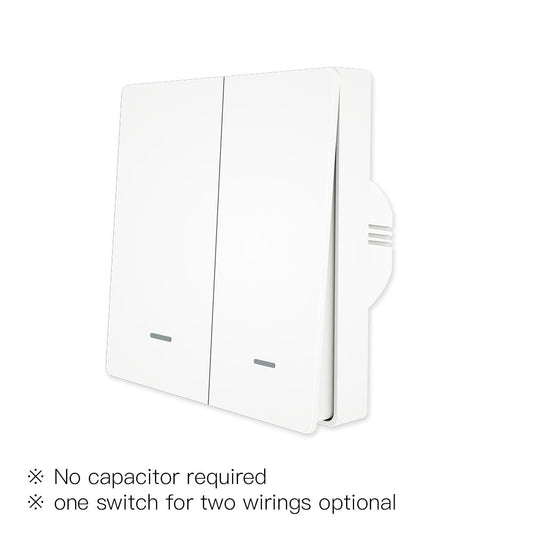
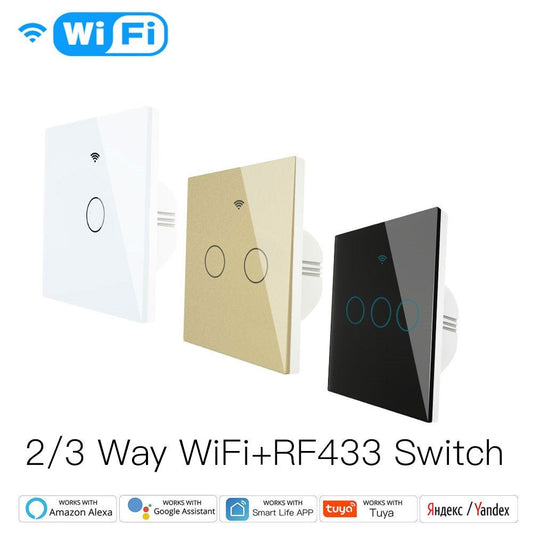
If you want smart dimming control without replacing your existing switch panel, the MOES WiFi Smart Dimmer Switch Module is the answer. It fits neatly behind your current switch, works with the Tuya Smart Life App, and connects to Alexa or Google Home for voice control. Available in 1-gang and 2-gang versions, it supports multiple wiring setups so it works in most homes. This guide walks you through everything from wiring to your first scheduled scene.
Product page: MOES WiFi Smart Dimmer Switch Module
Video Installation Guide
Watch the full walkthrough before you start. It covers the wiring and app setup in detail. Watch on YouTube
What's in the Box
- MOES WiFi Smart Dimmer Switch Module (1-gang or 2-gang) x 1
- Mounting Screws x 2
- Wiring Diagram Reference Card x 1
What You'll Need
- A dimmable LED or incandescent light fixture
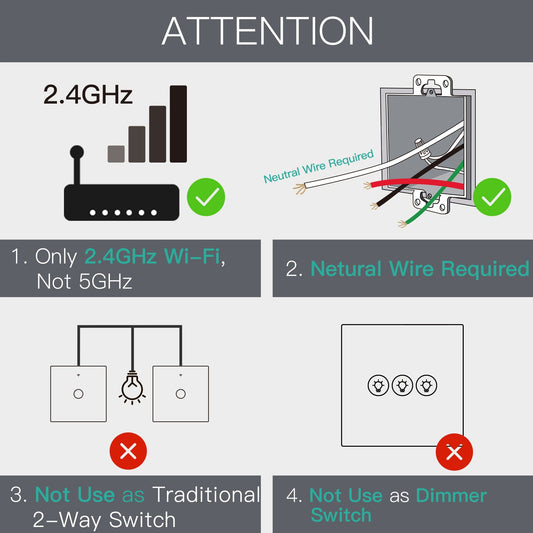
- An existing wall switch with a neutral wire available
- A screwdriver and basic electrical tools
- The Tuya Smart Life App on your smartphone
- A 2.4GHz Wi-Fi network
Safety note: Always turn off the circuit breaker before touching any wiring. If you're not comfortable working with mains electricity, have a qualified electrician handle the wiring portion.
Step-by-Step Installation
Step 1: Turn Off the Power
Switch off the circuit breaker for the light you're automating. Use a voltage tester to confirm there's no live current at the switch before you touch anything.
Step 2: Remove the Existing Switch
Unscrew the wall switch and pull it out carefully. Before disconnecting any wires, take a photo of the existing connections. This makes it much easier to reference later if needed.
Step 3: Choose Your Wiring Configuration
The module supports several wiring setups depending on how your home is wired:
- 1-Gang Module: Three configurations available, covering single-switch, 2-way, and 3-way (multi-location) control.
- 2-Gang Module: Three configurations for controlling two independent light circuits from one module.
Check the wiring diagram on the reference card or printed on the module itself to find the right setup for your situation.
Step 4: Connect the Wires
Connect each wire to the correct terminal on the module. Here's what the labels mean:
- L — Live (line in)
- N — Neutral
- L1 / L2 — Load output to the light fixture
- S1 / S2 — Switch input terminals
Make sure every connection is firm and no bare wire is exposed outside the terminal block.
Step 5: Mount the Module
You have two options for mounting:
- Wall Backbox: Fit the module into the existing backbox and secure it with the included screws. Reattach your switch panel on top.
- DIN Rail: Clip the module onto a standard DIN rail inside a distribution board. Great for panel-based setups.
Step 6: Restore Power and Test
Turn the circuit breaker back on. The module's LED should light up. Test the light using the physical wall switch to confirm the wiring is correct before moving on to the app.
Step 7: Add to the Tuya Smart Life App
- Open the Tuya Smart Life App and make sure your phone is on your 2.4GHz Wi-Fi network.
- Tap "Add Device" and select the Lighting or Switch category.
- Hold the reset button for about 5 seconds until the LED flashes rapidly to enter pairing mode.
- Follow the on-screen steps to connect the module to your Wi-Fi.
- Give it a name like "Living Room Dimmer" and assign it to a room.
Step 8: Set the Power-On Relay Behaviour
In the device settings, you can choose what happens when power is restored after an outage:
- On: The light turns on automatically.
- Off: The light stays off.
- Memory: Returns to whatever state it was in before the outage.
Step 9: Configure 2-Way or Multi-Way Control
Want to control the same light from two locations, like the top and bottom of a staircase? Wire the module using the 2-way or 3-way configuration shown in the diagram. Once set up, both physical switches work independently alongside the app and voice control.
Step 10: Connect to Alexa or Google Home (Optional)
- Amazon Alexa: Open the Alexa app, go to Skills and Games, search "Tuya Smart", enable the skill, and link your account.
- Google Home: Open Google Home, tap Add, choose "Works with Google", search "Tuya Smart", and link your account.
Step 11: Set Schedules and Timers
Head to your device in the Tuya app and tap "Schedule" to set daily on/off times. You can also create countdown timers, which are handy for bathroom or hallway lights.
Sharing Control with Family
Go to device settings and tap "Share Device" to give other household members control. Everyone can manage the lights from their own phone without needing your login.
Troubleshooting
- Module not powering on: Check that the circuit breaker is on and that Live and Neutral are connected to the correct terminals.
- Light flickers or won't dim smoothly: Make sure your bulbs are dimmable LED or incandescent. Non-dimmable LEDs won't work with a dimmer module.
- Can't connect to Wi-Fi: Confirm your phone is on a 2.4GHz network, not 5GHz. Reset the module and try pairing again.
- Physical switch not responding: Double-check that the S1/S2 switch input terminals are wired correctly for your chosen configuration.
- Relay status not saving: Update the Tuya Smart Life App to the latest version and reconfigure.
Technical Specifications
- Model: WM-105-M-MS (1 Gang) / WM-105B-M-MS (2 Gang)
- Wireless Protocol: Wi-Fi 2.4GHz
- Compatible App: Tuya Smart Life
- Mounting: Wall backbox or DIN rail
- Control Modes: App, physical switch, voice (Alexa / Google Home)
- Wiring Configurations: Single-way, 2-way, 3-way
- Variants: 1 Gang ($15.99) / 2 Gang ($17.99)
Recommended Products
Here are a few products from our store that pair well with the WiFi Smart Dimmer Switch Module.
Smart Switches
WiFi Smart Dimmer Module (2 Gang)
Control two independent light circuits from a single in-wall module.
View ProductWiFi Touch Smart Curtain Switch (EU)
Touch-panel switch designed for motorized curtains and roller blinds.
View ProductWiFi Smart Curtain Push Button Switch (EU)
Push-button wall switch for motorized curtain motors and roller blinds.
View ProductSmart Hubs and Gateways
Tuya ZigBee Smart Gateway Hub
The essential hub for all Tuya ZigBee 3.0 smart devices in your home.
View ProductTuya ZigBee Matter Thread Gateway
Next-generation smart home bridge supporting ZigBee, Matter, and Thread protocols.
View ProductGet the Product
Ready to make your lights smarter? Pick your variant and get started today.