How to Connect Matter Smart Bulbs to Alexa, Google Home, SmartThings, and Apple Home
If you have ever felt frustrated trying to remember which smart bulb works with which app, you are definitely not alone.
In the past, you had to buy specific bulbs for Apple Home and entirely different ones for Alexa. Thanks to the rollout of the Matter protocol, those days of ecosystem walls are officially over.
Using the Matter Multi-Admin feature, you can now connect a single smart bulb to Apple Home, Google Home, Amazon Alexa, and Samsung SmartThings all at the exact same time.
This means everyone in your house can control the lights using their preferred voice assistant or app.
Today, we will walk you through the exact process of setting up this cross-platform connection using the latest MOES Matter smart bulbs.
Upgrade Your Smart Lighting Setup
If you are ready to ditch the ecosystem restrictions and experience seamless smart lighting, you need hardware that supports the new standard. Here are two fantastic, fully Matter-certified options from MOES that offer 16 million RGB colors and dimmable white light (2700K to 6500K):
- MOES Tuya GU10 Matter WiFi Smart LED Bulb (5W): The perfect spotlight replacement. These are excellent for track lighting, highlighting artwork, or creating focused accent lighting in your living room.

- MOES Tuya Matter WiFi Smart LED E14 Dimmable Light Bulbs: The ideal choice for chandeliers, wall sconces, and bedside lamps, bringing instant smart capabilities to your traditional decorative fixtures.

Before You Begin The Prerequisites
Before you try to pair anything, you need to ensure your network and hardware are ready for Matter.
1. Network Requirements
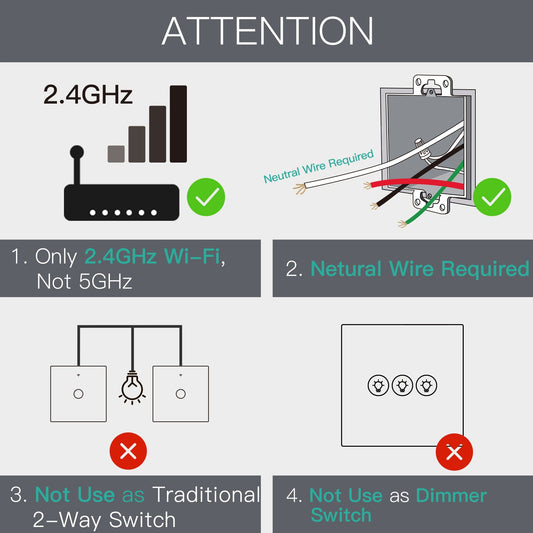
Your smartphone and the smart bulb must be connected to a standard 2.4GHz Wi-Fi network. You also need to ensure that IPv6 is enabled in your home router settings, as the Matter protocol relies heavily on it to function properly.
2. Phone Settings
Turn on Bluetooth and enable Location Services on your smartphone during the initial setup phase.
3. Matter Hub Requirement
You cannot use Matter without a compatible Matter Hub (also known as a Thread Border Router) for your specific ecosystem. You will need at least one of the following depending on your preferred platform:
- Apple: HomePod mini or Apple TV 4K
- Google: Nest Hub or Nest Audio
- Amazon: Compatible Echo smart speaker (like the Echo Dot 4th or 5th Gen)
- Samsung: SmartThings Hub v2/v3 or SmartThings Station
Step One Put the Bulb into Pairing Mode
Regardless of which app you want to use first, you need to trigger the pairing mode on the hardware.
- Install your MOES GU10 or E14 bulb into the socket and turn on the power.
- Flip the physical light switch on and off repeatedly 3 to 5 times.
- Wait a few seconds. When the bulb starts breathing or flashing rapidly, it has successfully reset and is ready to pair.
Step Two Add to Your First Platform
You can start with any platform you like. For this guide, we will use Apple Home as the starting point.
- Open the Apple Home app on your phone.
- Tap the + icon in the top right corner and select Add Accessory.
- Use your phone camera to scan the physical Matter QR code printed on the bulb or the included user manual.
- Keep your phone close to the bulb while the app connects.
- Once connected, assign the bulb to a room and give it a recognizable name.
Step Three The Multi-Admin Setup
Now that the bulb is connected to your first platform, the original QR code is essentially deactivated for security reasons. To share the bulb with Alexa, Google Home, or SmartThings, you must generate a new digital pairing code.
How to generate the sharing code:
- Open your first app (Apple Home) and navigate to the settings menu for your new smart bulb.
- Scroll down and tap on Turn on Pairing Mode (or Share Device depending on the app).
- The app will generate a brand new 11-digit numeric pairing code. Tap to copy this code.
How to add it to the second platform (Alexa example):
- Open the Amazon Alexa app.
- Navigate to the Devices tab, tap the + icon, and select Add Device.
- Scroll to the bottom, select Other, and then tap on Matter.
- When the camera scanner opens, tap the option that says Try using a numeric code instead.
- Paste the 11-digit code you copied from Apple Home and tap continue.
- Alexa will discover the bulb and add it to your Amazon ecosystem.
You can repeat this exact same code-generation process to add the bulb to Google Home and SmartThings. Just generate a new code from your primary app and paste it into the new one.
Troubleshooting and Pro Tips
Mind the Time Limit: The 11-digit setup code you generate is only valid for about 15 minutes. Make sure you are ready to open your second app immediately after generating the code. If it expires, simply go back and generate a new one.
Network Consistency: If the second app refuses to connect, double check that your phone did not automatically jump to your 5GHz Wi-Fi network. Your phone must remain on the 2.4GHz band during the entire pairing process.
Welcome to a Truly Unified Smart Home
With the Matter protocol, those frustrating days are finally behind us. The Multi-Admin feature gives you the ultimate freedom to mix and match your favorite voice assistants and platforms without having to replace all your hardware.
Whether you are outfitting a cozy bedroom with warm lighting or upgrading your entire living room with vibrant colors, grabbing a few Matter-certified bulbs is the absolute best way to future-proof your setup.